Control4 Account Management
Manage all your Control4 accounts under Account > C4 Account Management. The information is provided by my.control4.com.
Click here to learn more about adding a Control4 system to OvrC.
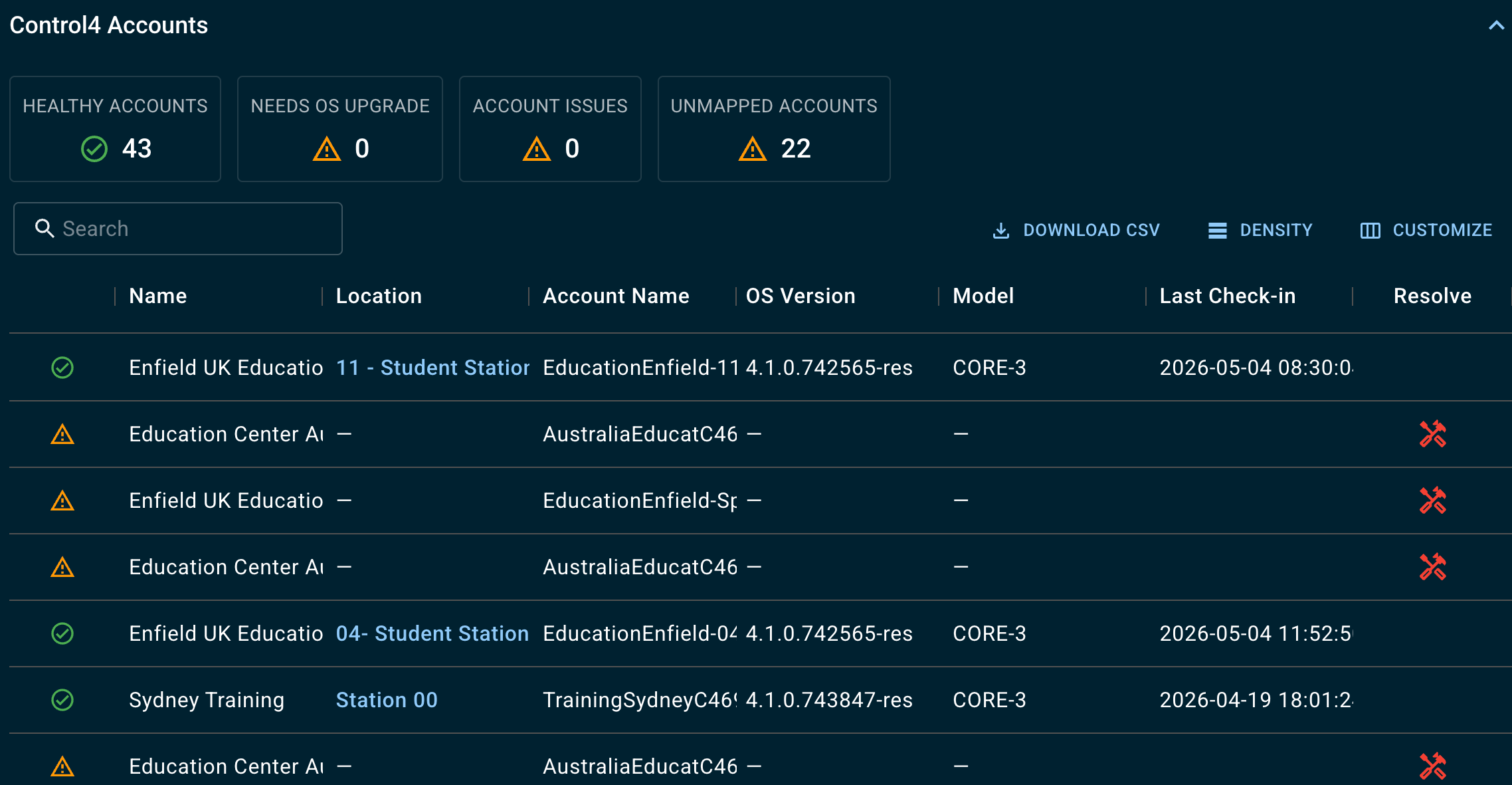
The Control4 Account table displays each location with a claimed Control4 controller. The tiles at the top of the table act as filters:
-
Healthy Accounts: No issues detected.
-
Needs OS Upgrade: There's an update available for the controller's current OS.
-
Account Issues: OvrC has detected a problem
-
Unmapped Accounts: The primary controller isn't claimed to an OvrC Customer Location.
Checking for upgrade opportunities
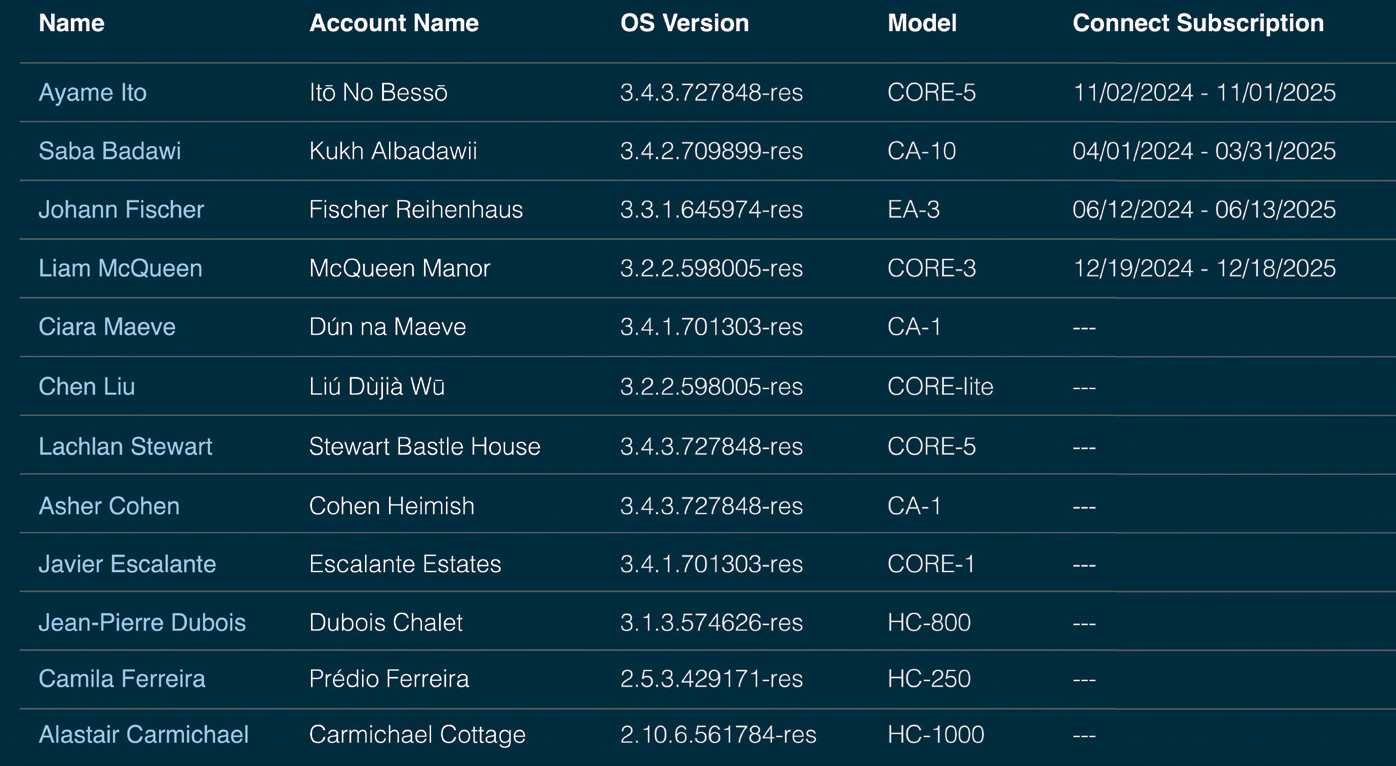
The Control4 Accounts table is especially helpful when looking for upgrade opportunities. Use the Customize button to enable columns like, Model, OS Version, and Control4 Connect Subscription. Then click a column to sort the data in ascending/descending order.
You can quickly see upgrade opportunities for a new controller, OS upgrades, or a new subscription opportunity.
Troubleshooting account issues
A red tool icon appears in rows with account issues. Click the red tool icon  to learn how to resolve the problem.
Possible errors and solutions
The Control4 project has incompatible hardware. Upgrade your customer's hardware.
The linked Control4 account shows a project mapped to the location, but the primary controller is unclaimed.
Claim the controller in this location to resolve the issue.
The primary controller is unclaimed and is not mapped to an OvrC customer or location. To resolve this issue, create a new customer/location and claim the controller.
The controller's OS version is out of date. Update the controller to OS 3.3.1 or higher.
The customer account is associated with a different dealer account. Click Continue to map the customer’s Control4 Account to this OvrC location. Type ‘RESOLVE’ to verify.
Contact your customer to change their Smart Home Pro on customer.control4.com. Read How customers change their integrator to learn more.
An on-site system takeover is required to resolve the issue. Read How to perform an OvrC System Takeover for more info.
An on-site system takeover is required to resolve the issue. Read How to perform an OvrC System Takeover for more info.
OvrC detects a claimed controller on the account. Click Map to Location to resolve the issue.
OvrC detects multiple controllers that belong to different projects in the same location. Click Take Me to Device(s) to unregister and re-register the devices to a new customer/location.
Devices discovered in this location may not transfer. Go to the previous location to verify all the devices have transferred or run a scan on the new location to pull in discovered devices.